This documents the v1 product. It is kept for integrations already running
on it. If you are building something new, start with the
Quickstart.
Overview
Voice campaigns allow you to automate outbound calls to multiple contacts. You can create campaigns using CSV data uploads or connect directly through your existing systems via API integration.CSV Data Upload
Upload contact lists using our CSV template for quick campaign setup and
data management.
API Integration
Connect your existing systems via webhook to automatically sync contact
data.
Smart Scheduling
Configure precise timing, timezone handling, and operating hours for optimal
contact rates.
Call Management
Set retry logic, call duration limits, and inactivity periods to maximize
efficiency.
Setup Guide
Step 1: Access Campaign Creation
-
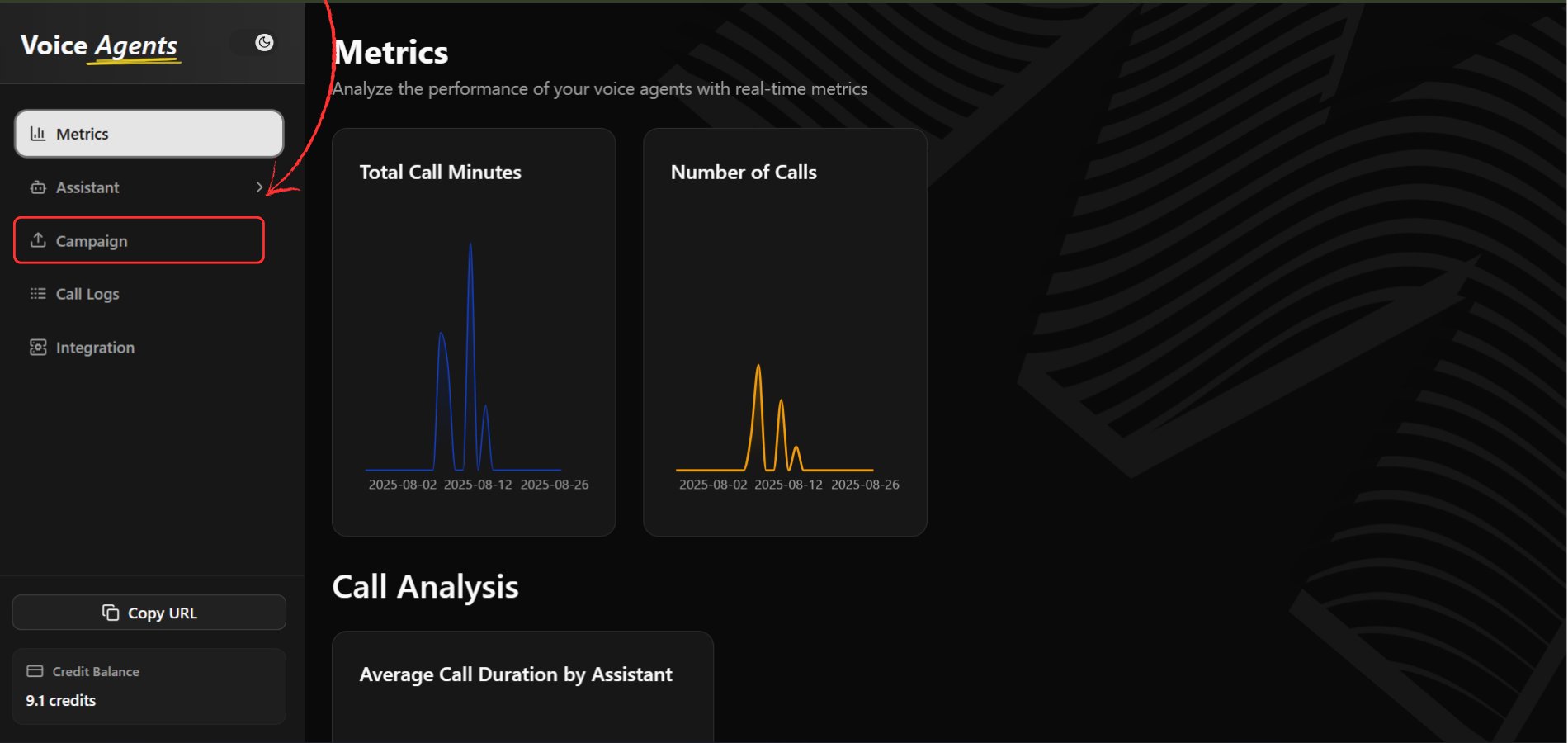
Navigate to Campaigns Page
Go to the Campaigns section in your Voice Agents dashboard.
-
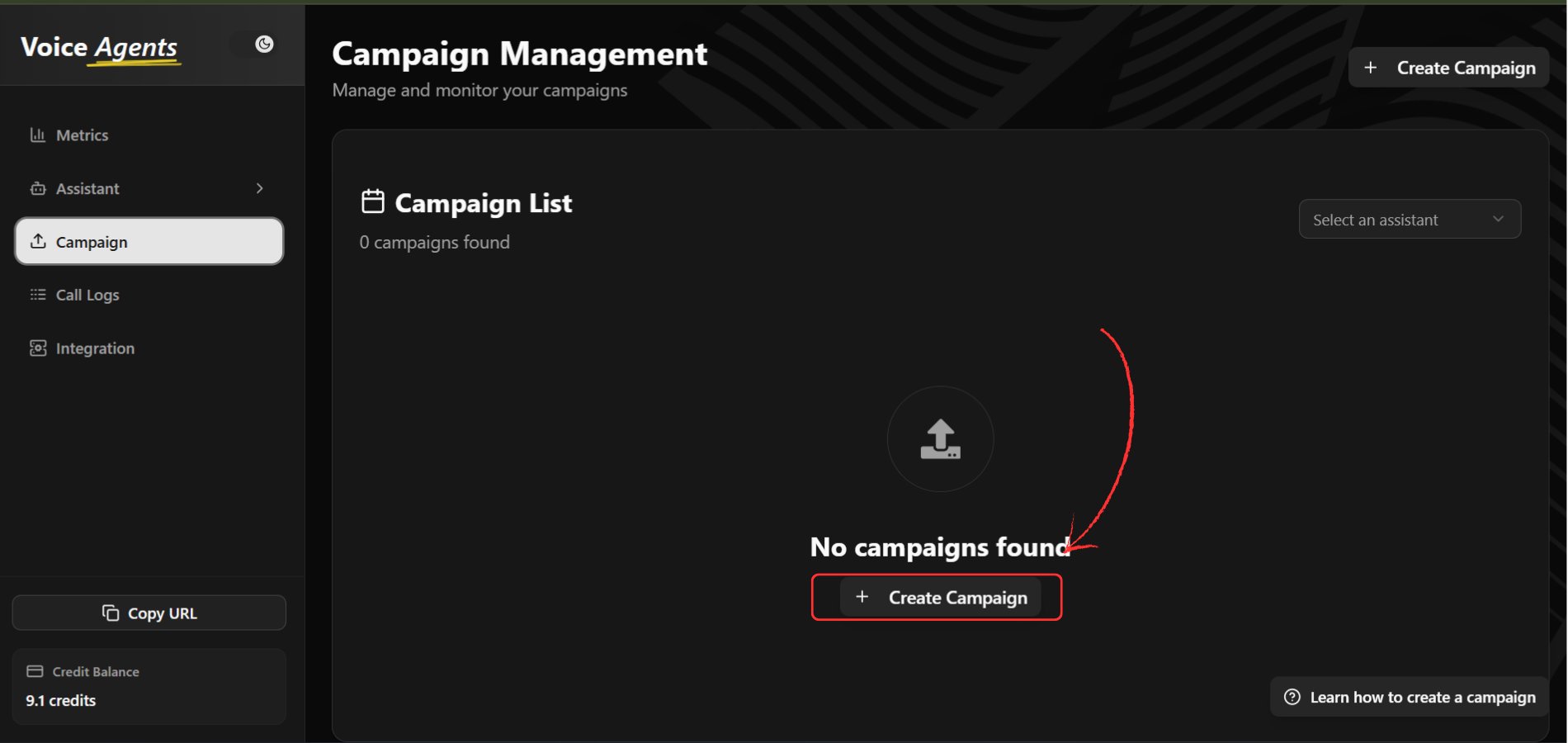
Create New Campaign
Click the “Create Campaign” button to start the setup process.
Step 2: Basic Campaign Configuration
-
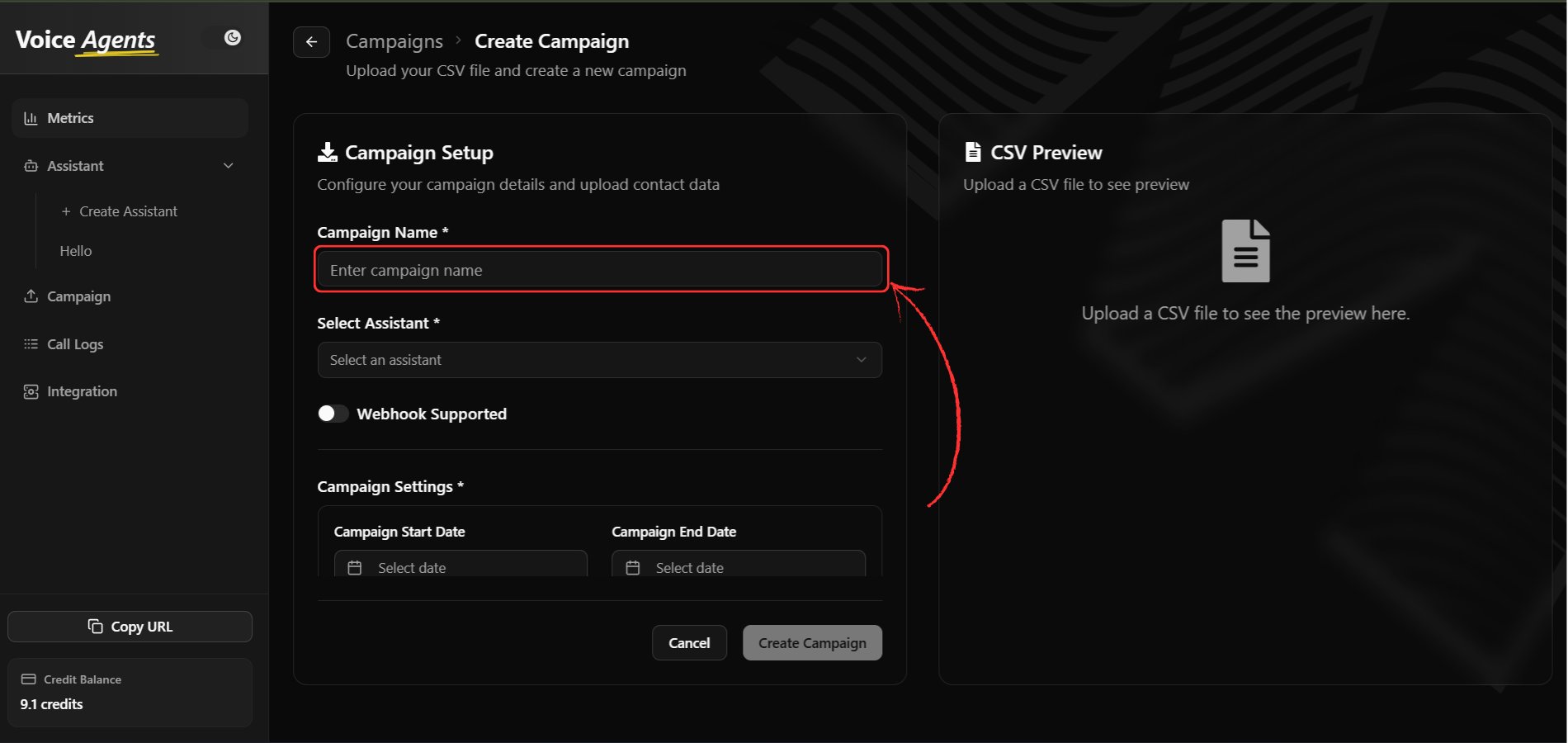
Enter Campaign Name
Provide a descriptive name for your campaign that clearly identifies its purpose.
-
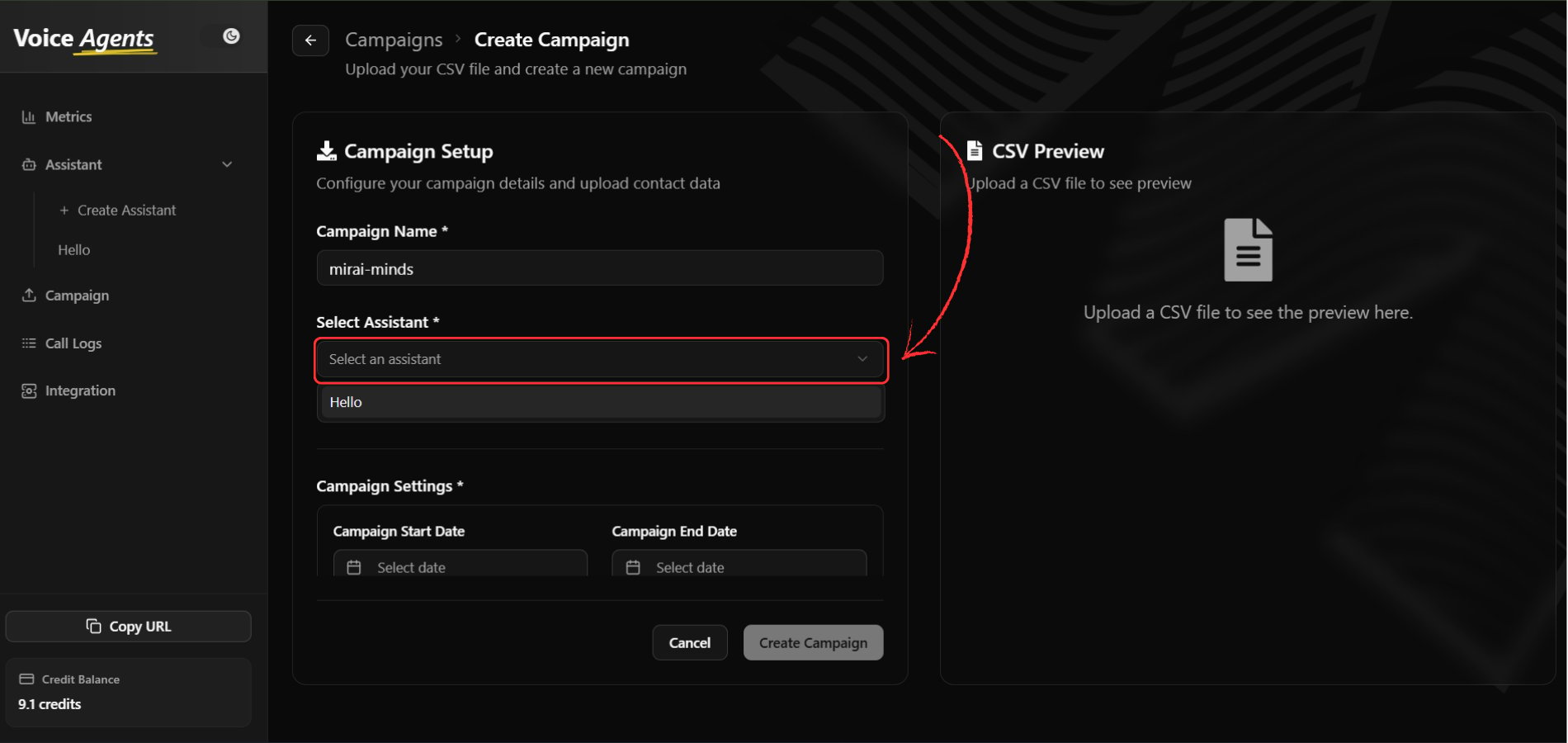
Select Voice Assistant
Choose the voice assistant that will handle all calls for this campaign.
-
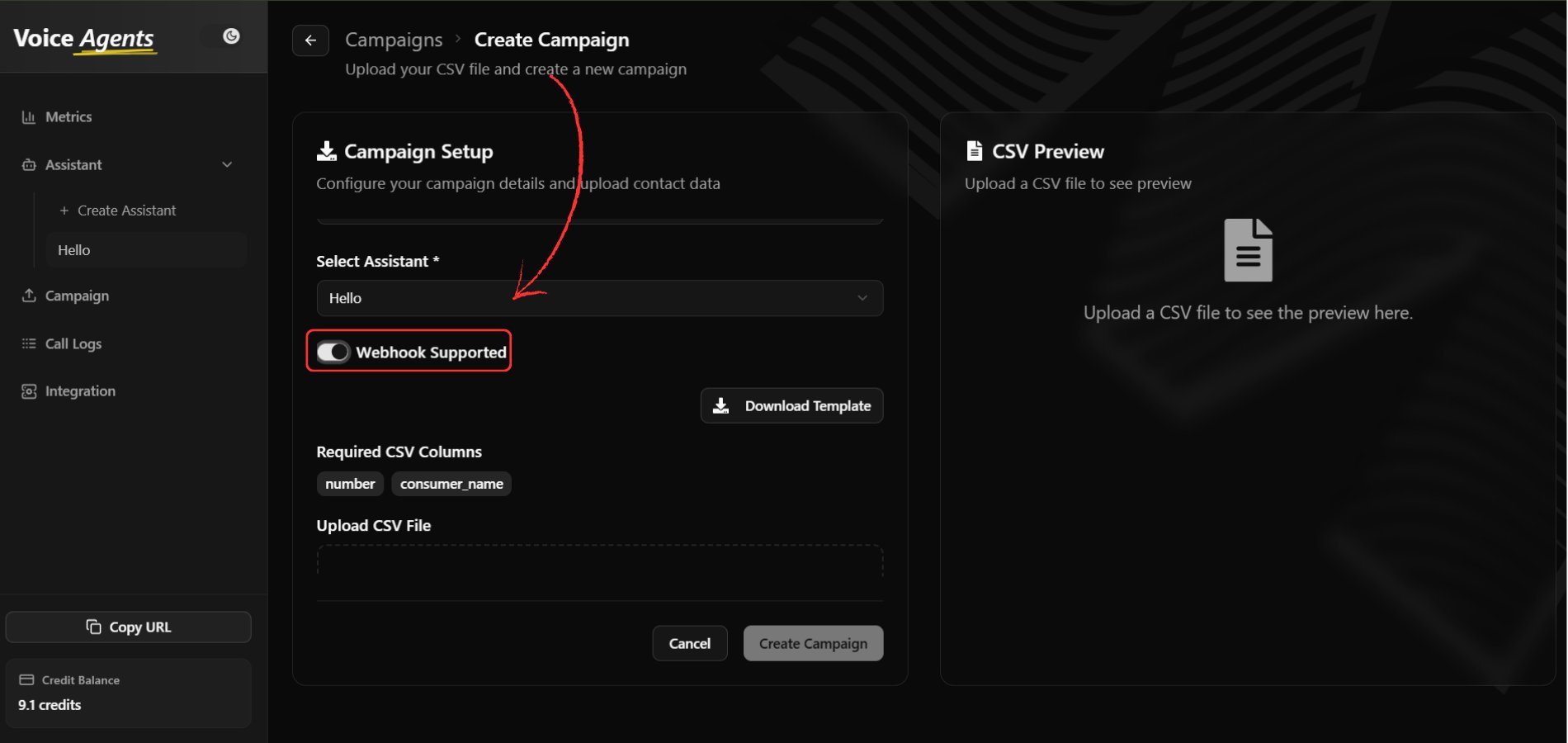
Configure Webhook Integration
Enable webhook integration if you need to add data from your platform through API. When enabled, CSV upload becomes optional.
Step 3: Data Management Setup
Option A: CSV Data Upload
-
Download CSV Template
Click “Download CSV Template” to get the correct format for your contact data.
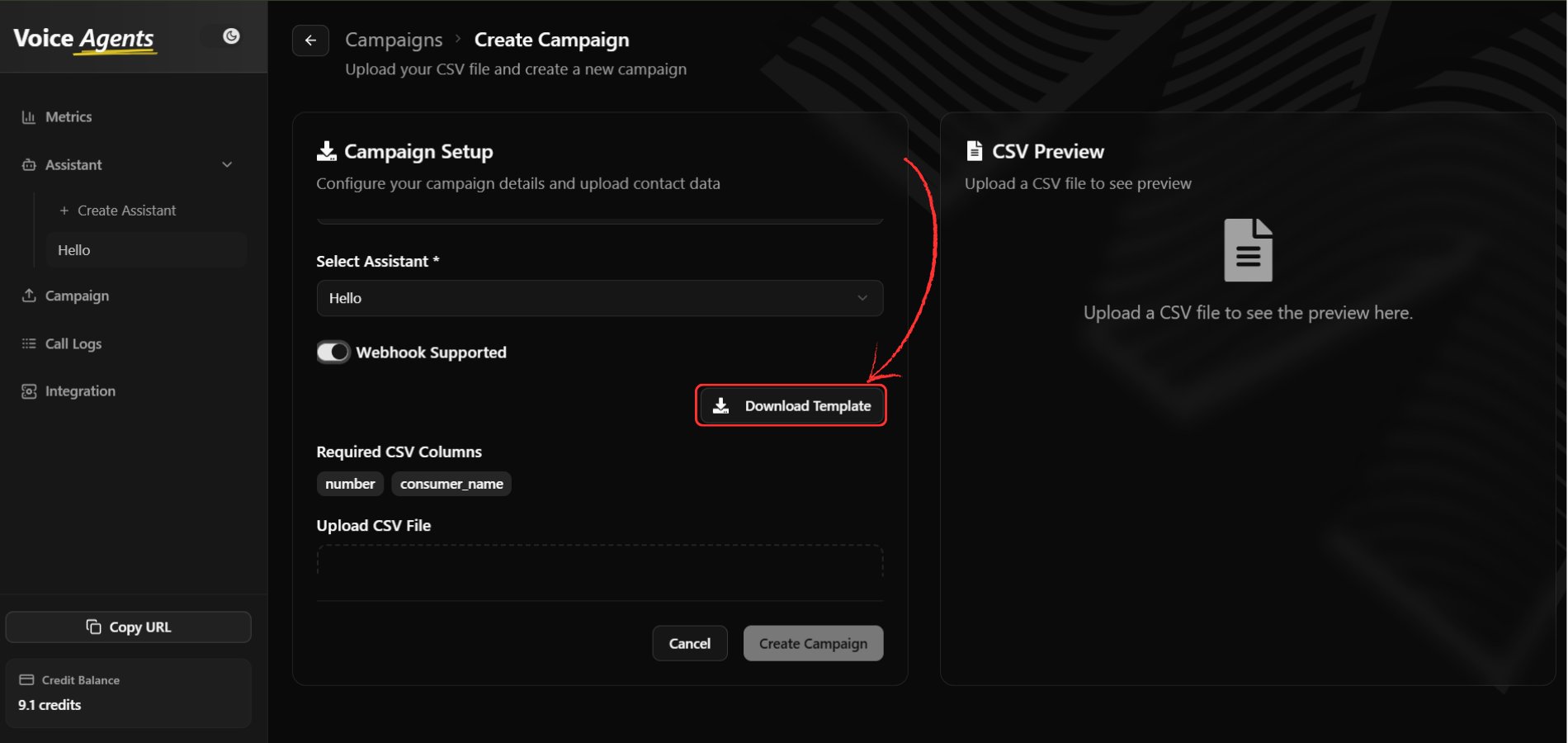
- Prepare Your Contact Data Update the downloaded CSV template with your contact information, ensuring all required fields are completed.
-
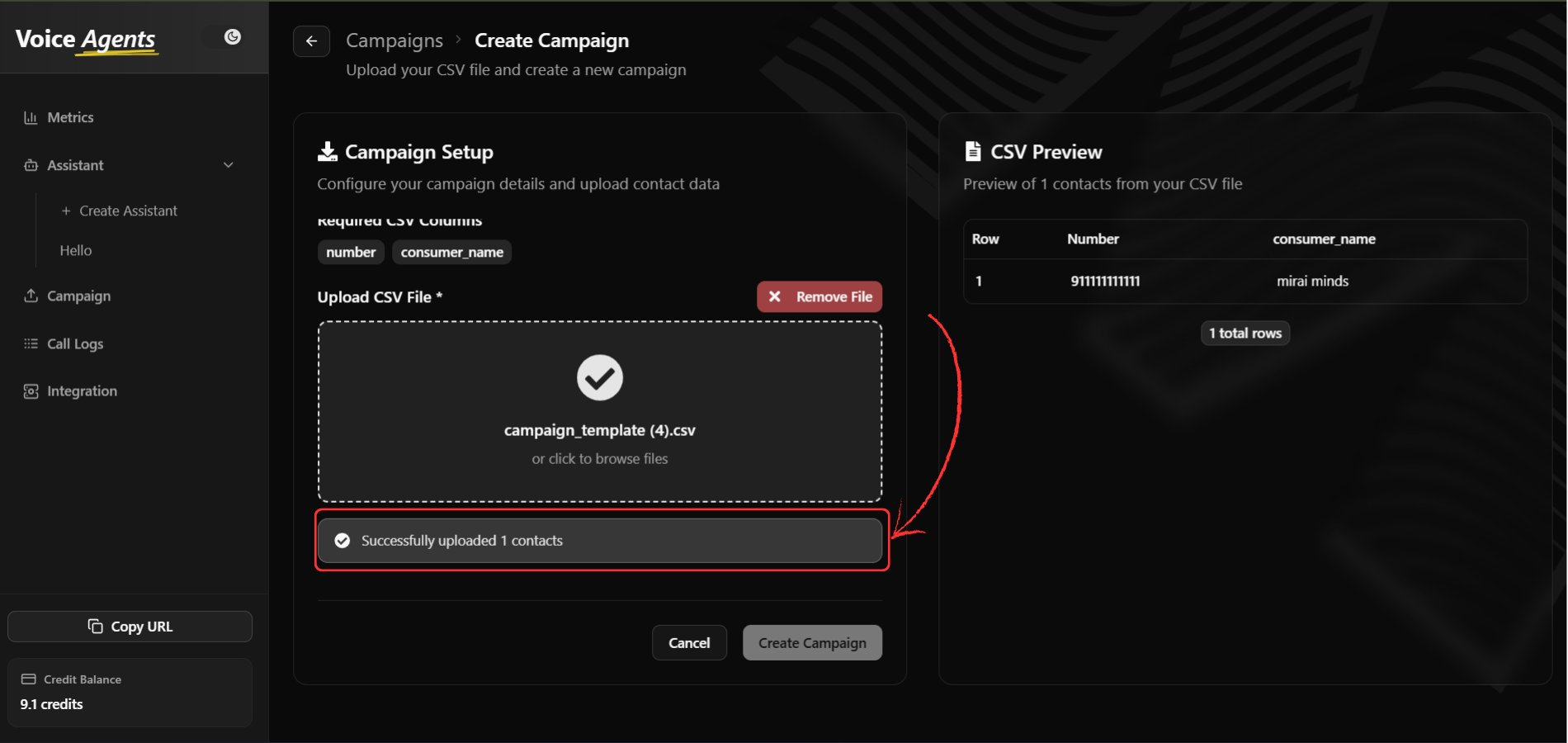
Upload CSV File
Upload your completed CSV file using the file upload interface.
-
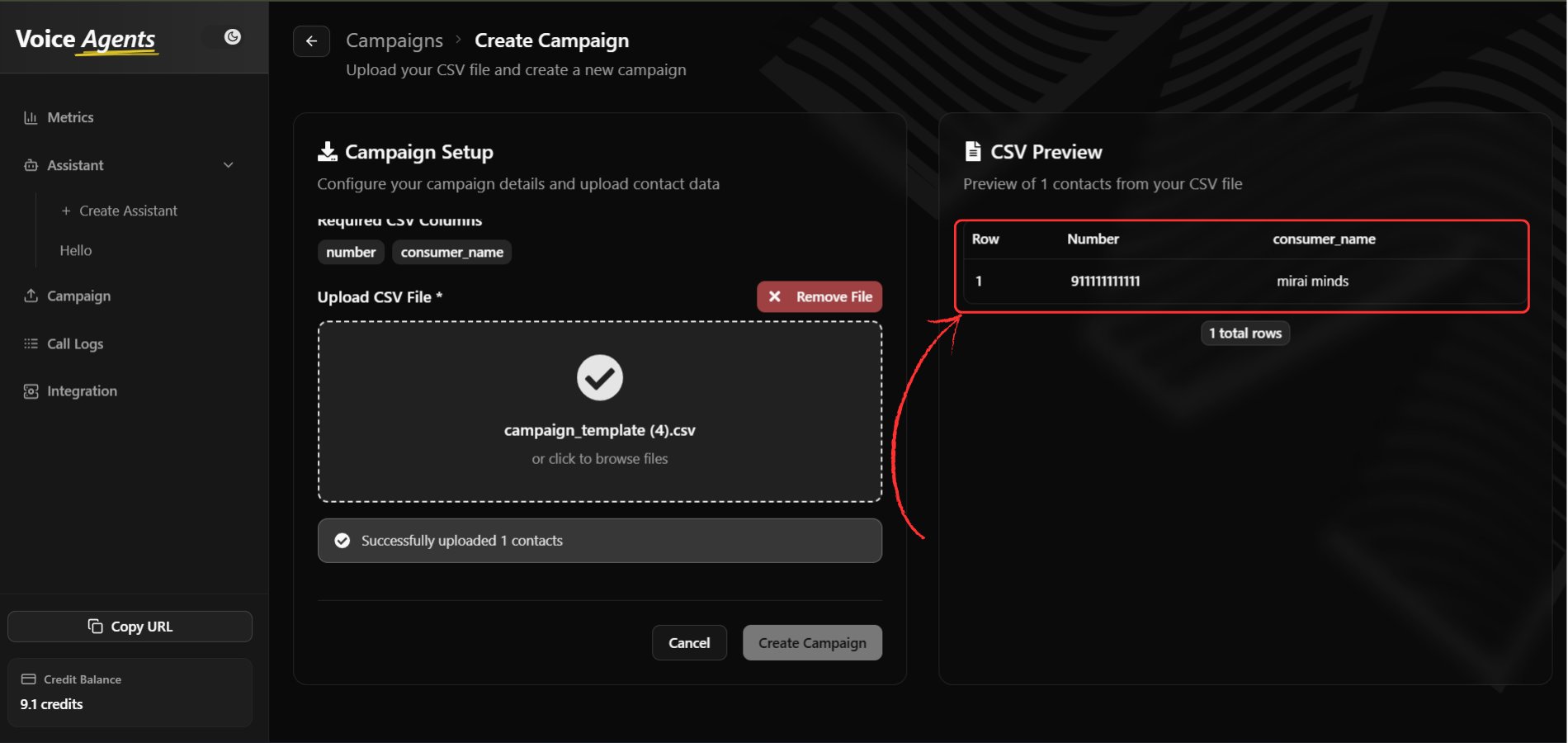
Preview Contact Data
Review your uploaded data in the right panel preview to verify accuracy before proceeding.
Option B: API Integration
When webhook is enabled, your platform can send contact data directly through API calls, eliminating the need for manual CSV uploads.Step 4: Schedule Configuration
-
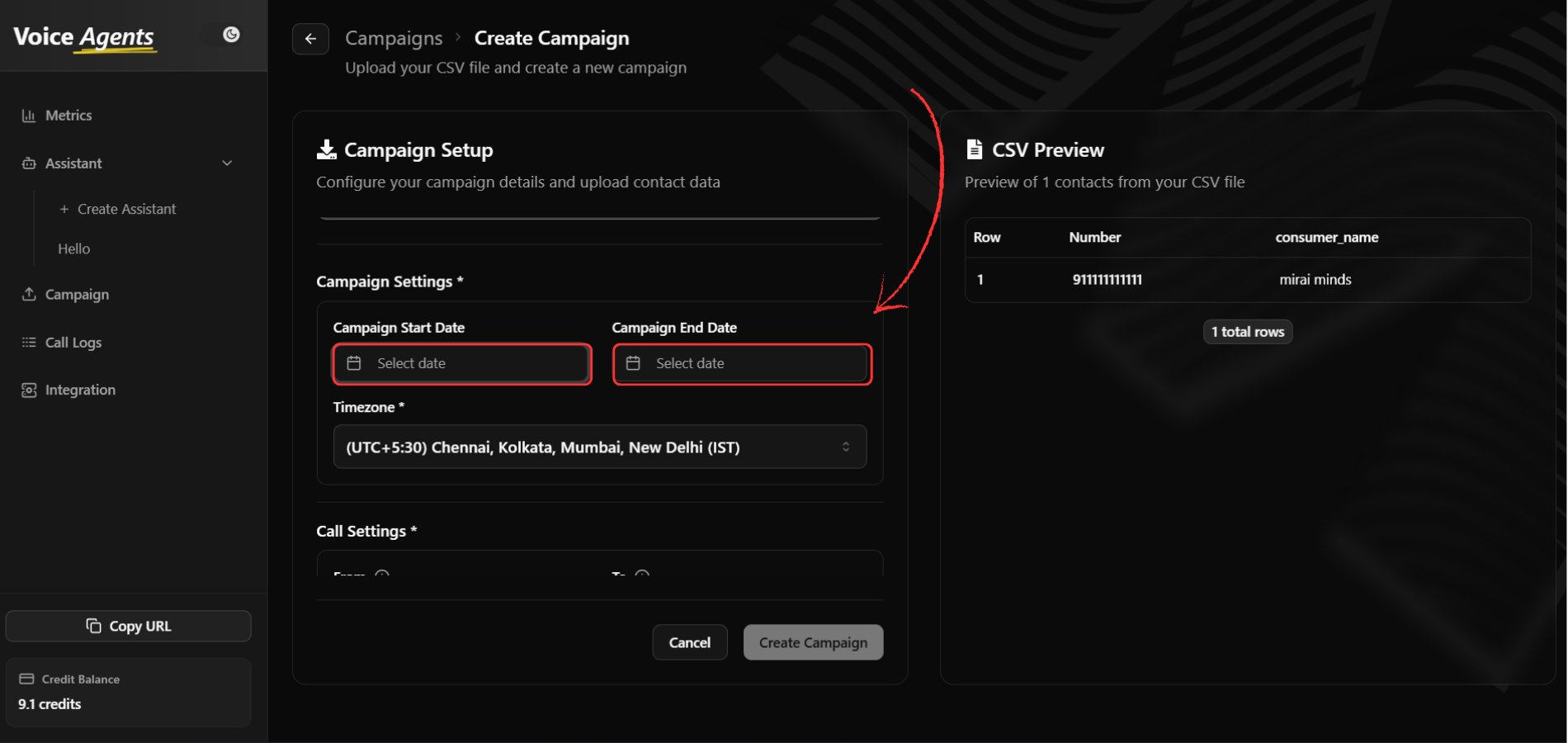
Set Campaign Dates
Configure your campaign timeline:
- Start Date: Select when the campaign should begin
- End Date: Choose when the campaign should conclude
-
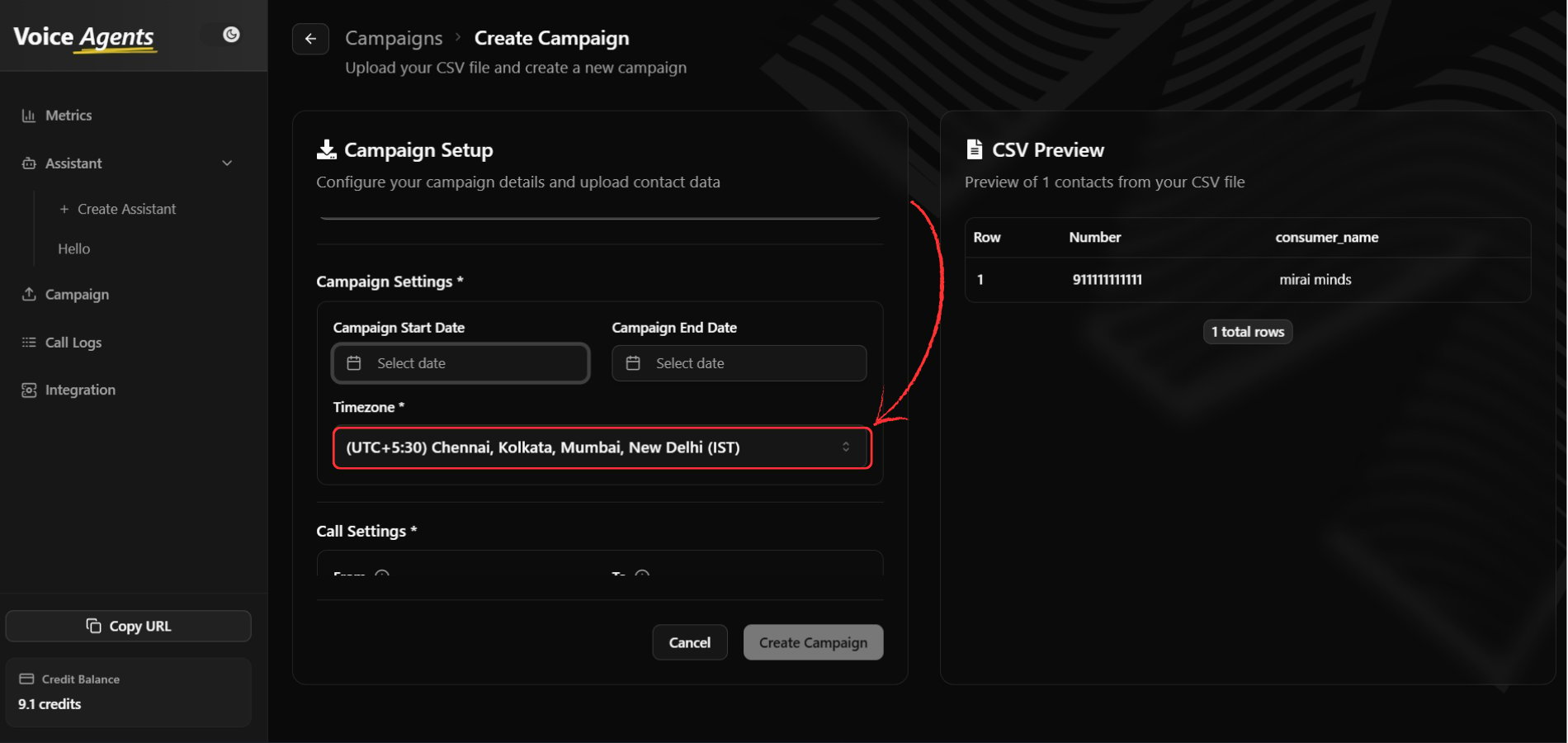
Configure Timezone
Select the appropriate timezone for your campaign to ensure calls are made at the right local times.
-
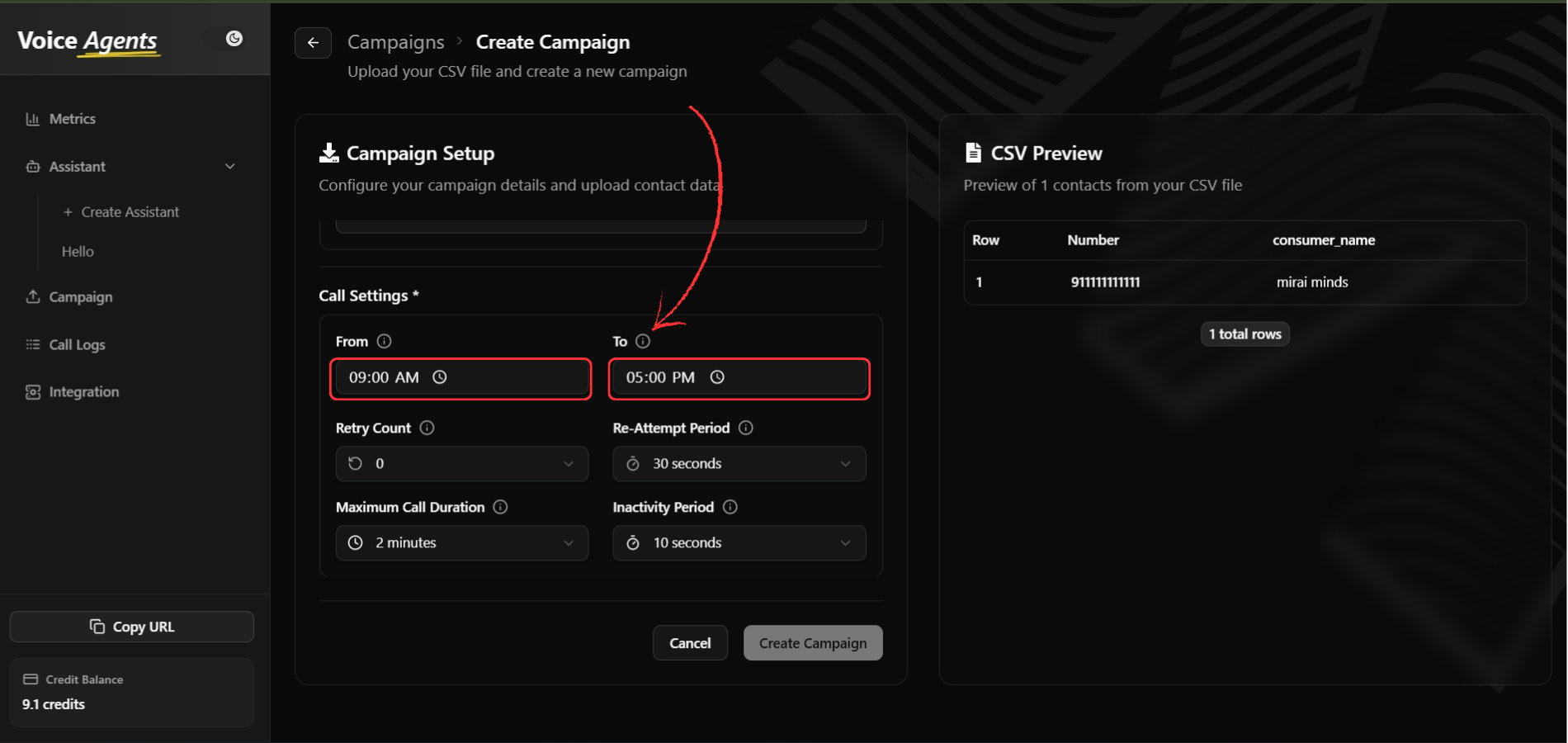
Set Operating Hours
Define your campaign’s daily calling window:
- Start Time: When calls can begin each day
- End Time: When calls should stop each day
Step 5: Call Behavior Settings
-
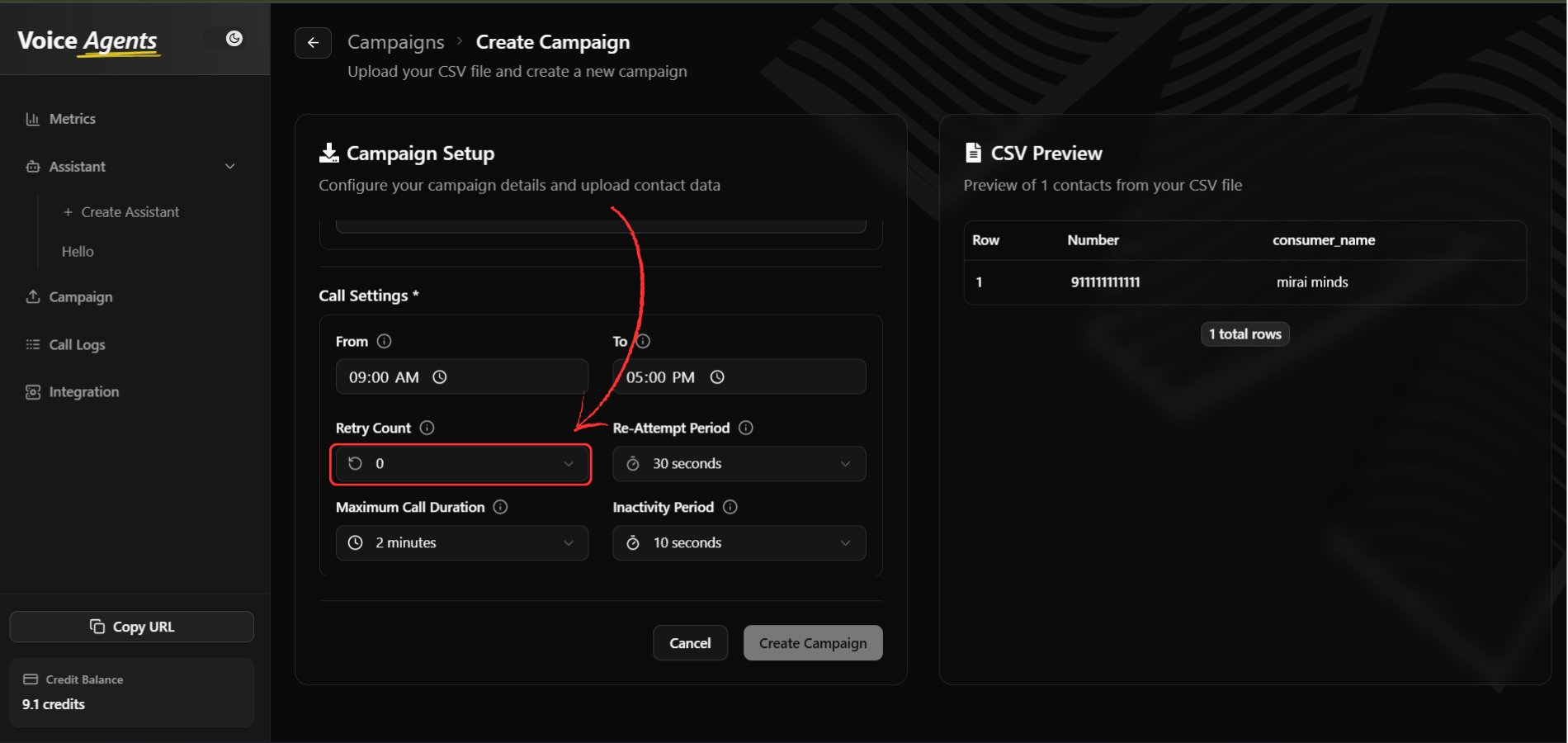
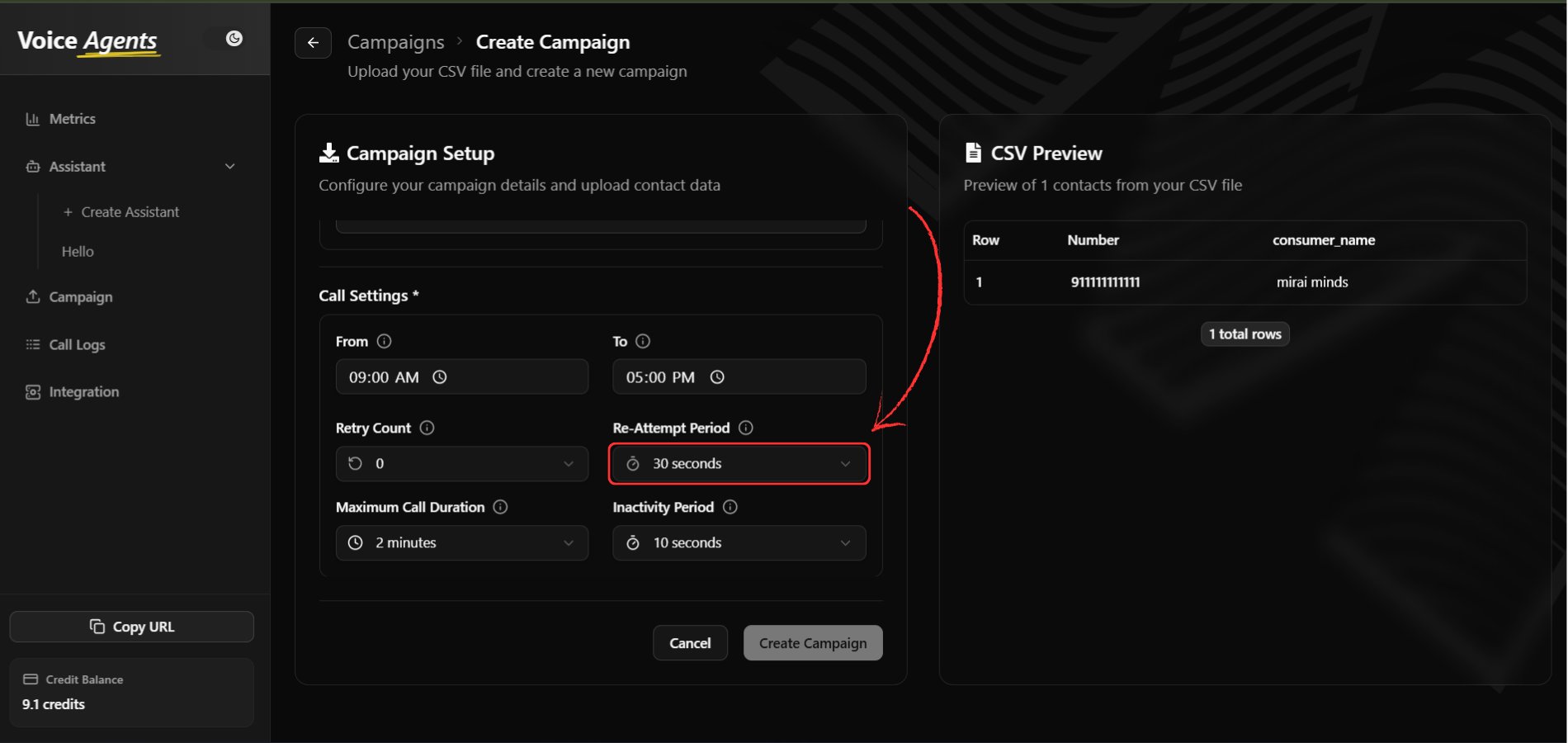
Configure Retry Logic
Set how the system handles unsuccessful call attempts:
- Retry Count: Number of attempts to reach each contact
- Re-Attempt Period: Time interval between retry attempts
-
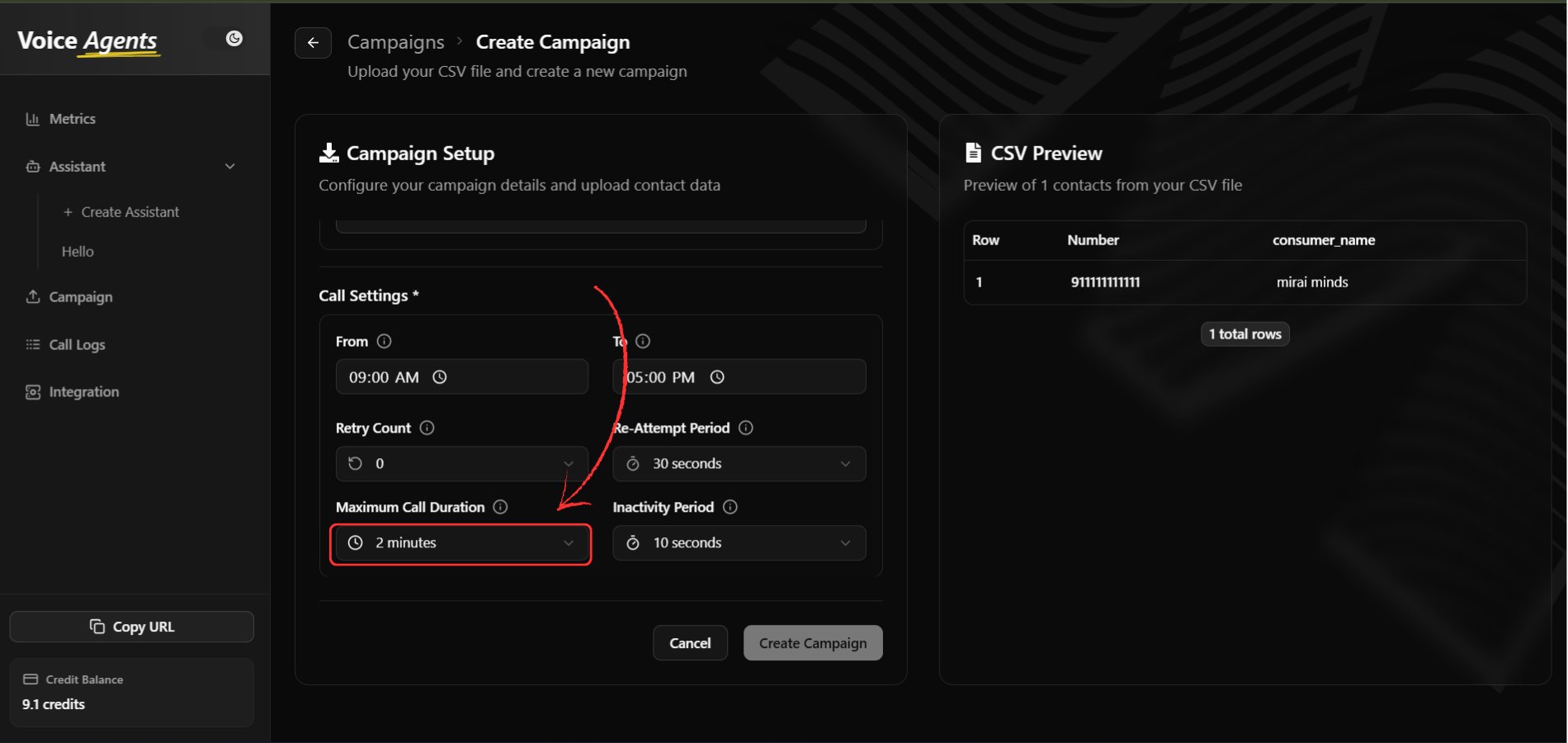
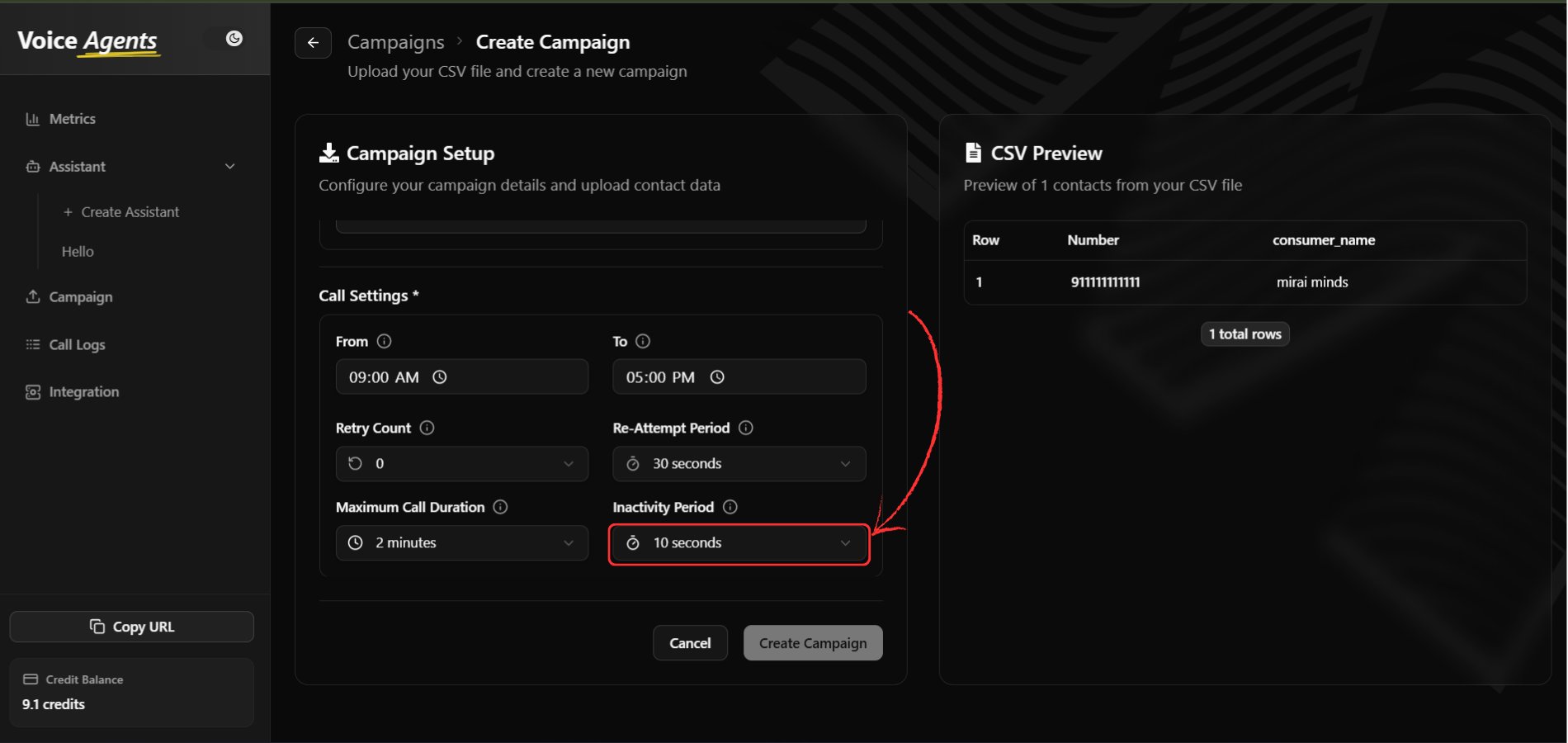
Set Call Duration Limits
Configure call timing parameters:
- Maximum Call Duration: Longest allowable call time
- Inactivity Period: Wait time during no response before ending calls
Step 6: Launch Campaign
-
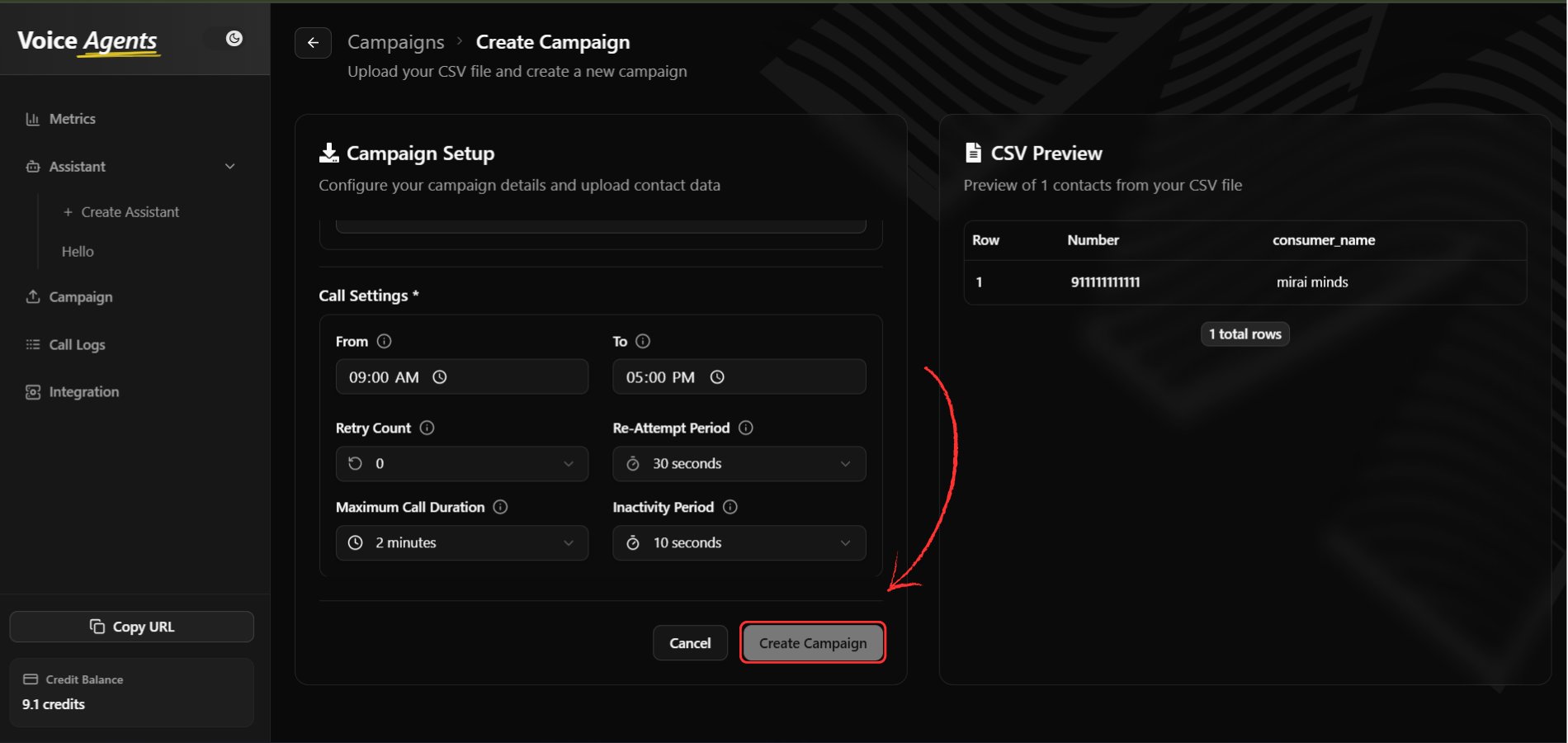
Create
Once all settings are configured, click “Create Campaign” to Create your campaign.
-
Handle Data Validation
After clicking create, the system processes your data:
- Valid Data: Successfully stored and included in the campaign
- Invalid/Missing Data: Not stored but displayed in a validation modal
Step 7: Launch and Manage Campaign
-
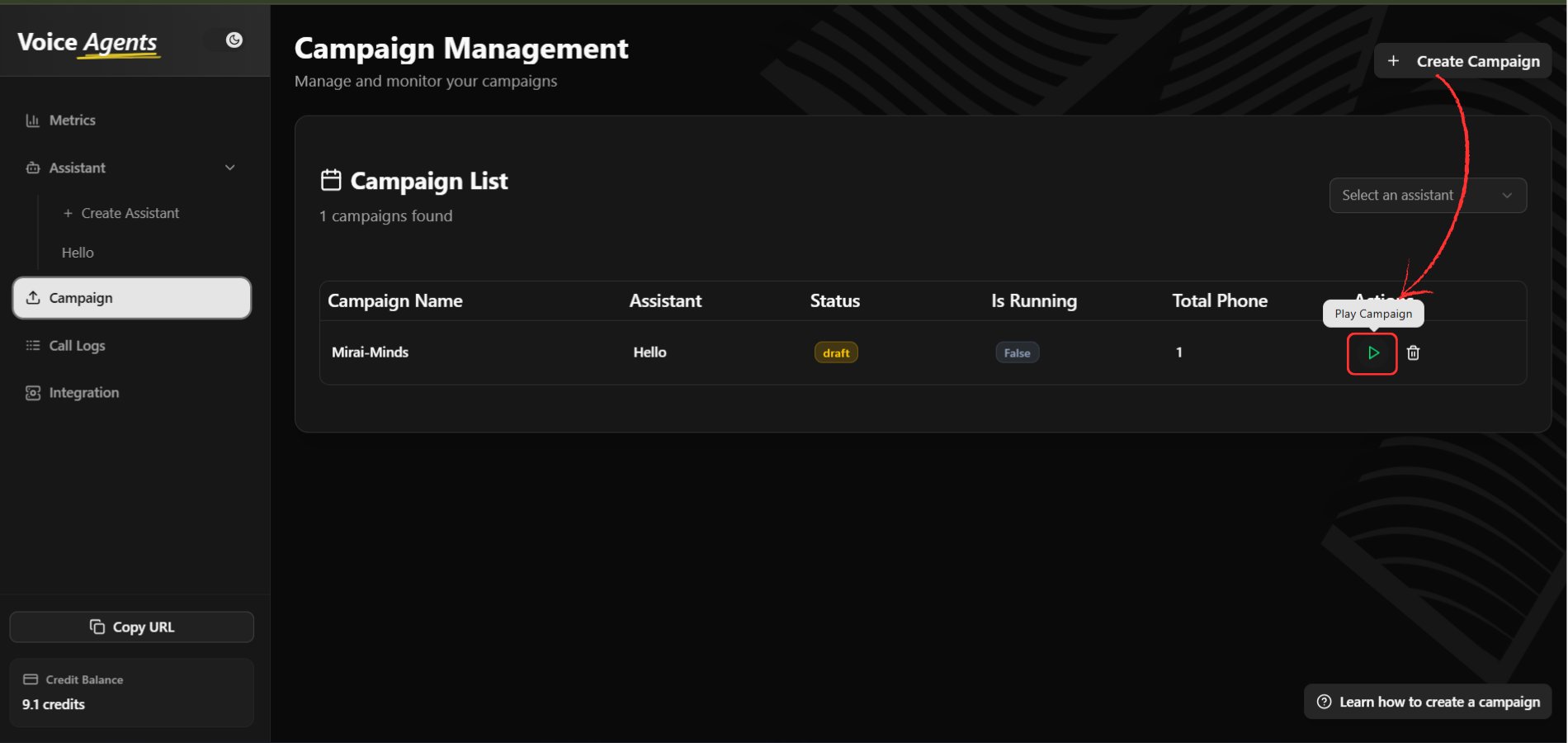
Launch Your Campaign
After creating your campaign, navigate to the campaign list to launch it. Click the “Play” button next to your campaign to start making calls.
-
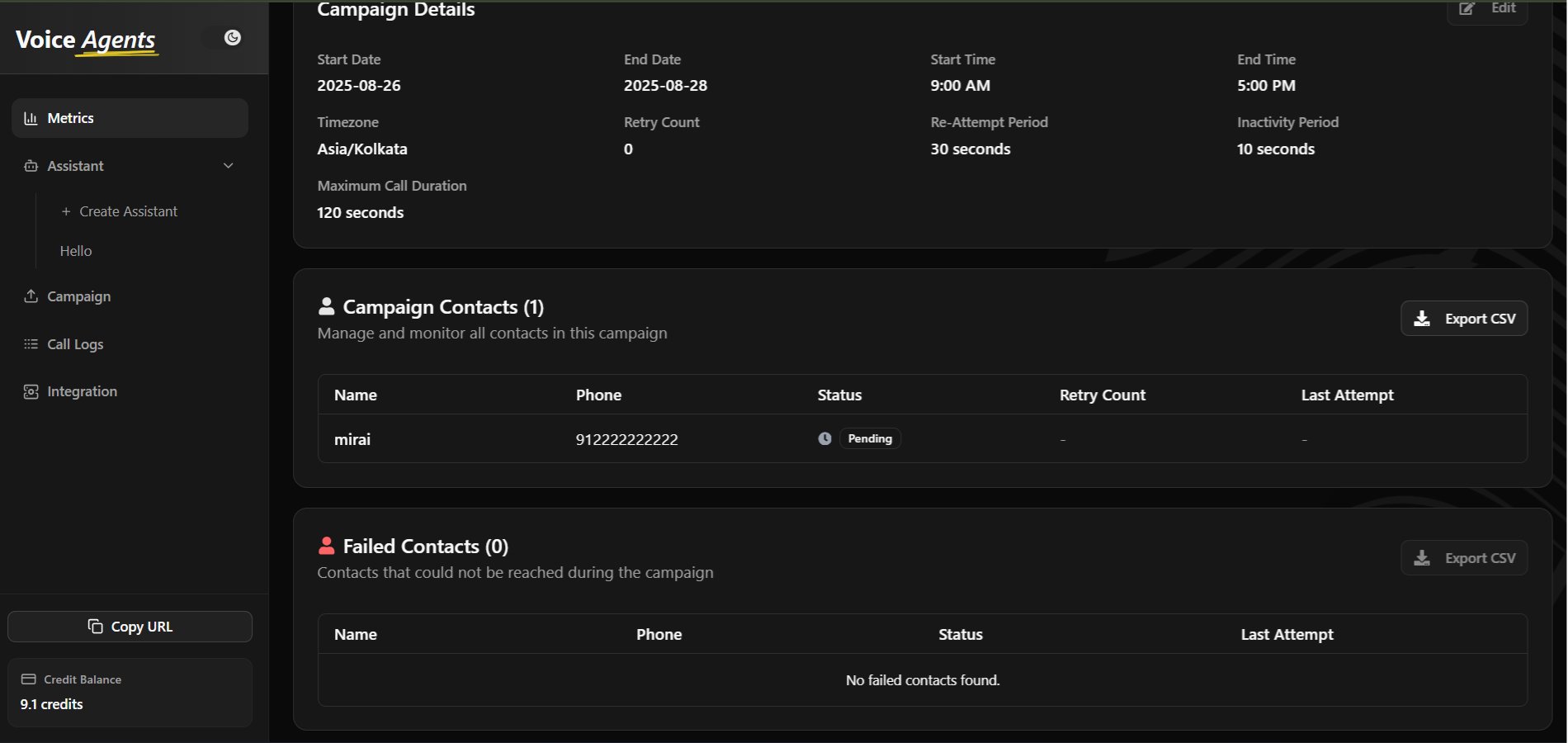
Track Campaign Status
Monitor your campaign’s progress by visiting the Campaign Status page. Here you can view:
- Call completion rates
- Success/failure statistics
- Real-time campaign progress
- Contact attempt history
-
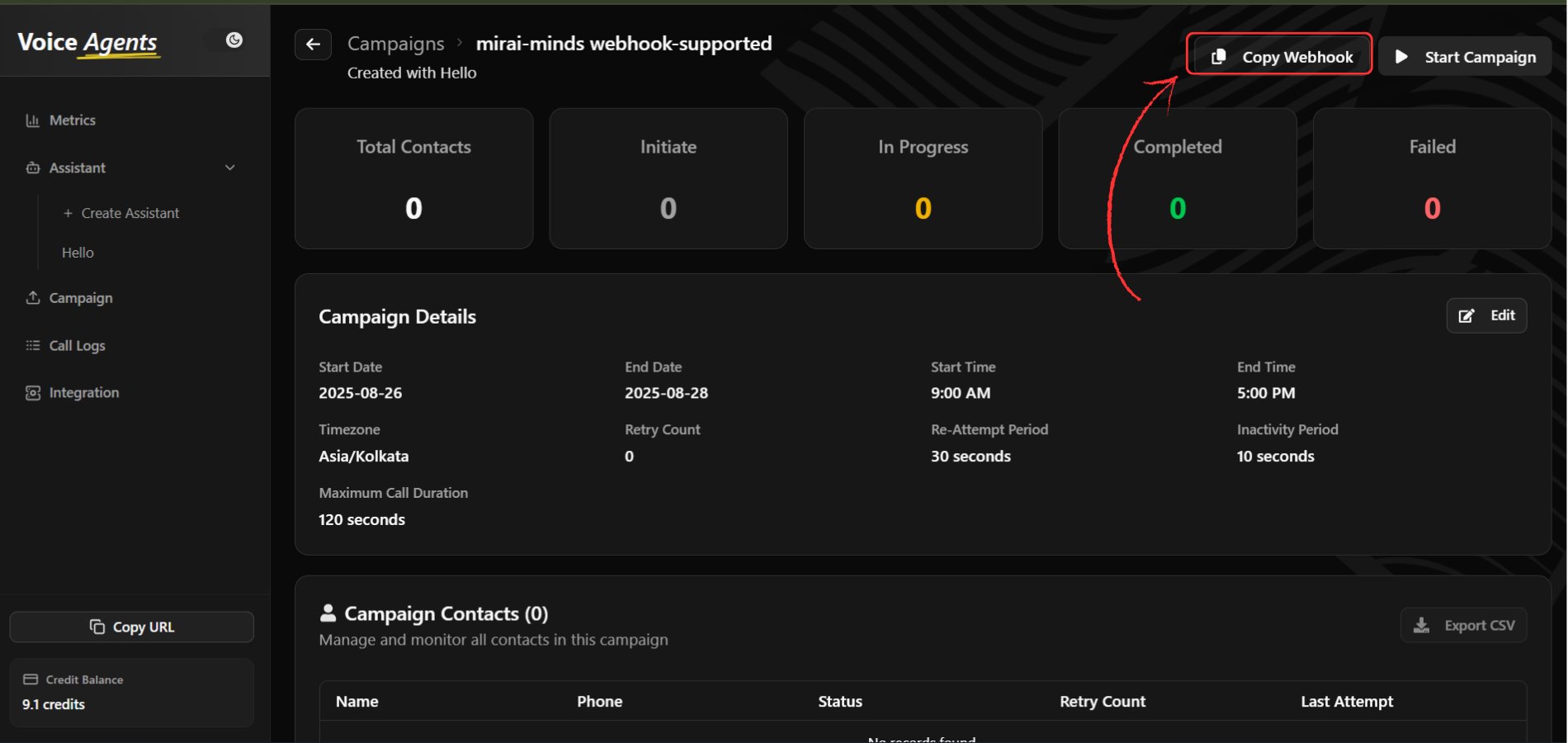
Copy Webhook API Endpoint
If you enabled webhook integration, you can copy the API endpoint for your platform integration. Click “Copy Webhook” to get the endpoint URL for sending data via API.
What’s Next?
Once your campaign is created and launched, you can:- Monitor Performance - Track call success rates and campaign progress
- Manage Active Campaigns - Pause, resume, or modify running campaigns
- Analyze Results - Review detailed campaign analytics and outcomes
- Export Reports - Download campaign performance data
Best Practices
Data Preparation
- Test your CSV data with a small sample before uploading large datasets
- Ensure phone numbers are properly formatted for your target regions
- Include all required fields to minimize data validation issues
Campaign Optimization
- Set reasonable retry limits to avoid overwhelming contacts
- Configure appropriate operating hours to respect contact preferences
- Monitor initial performance and adjust settings as needed
Compliance Considerations
- Ensure you have proper consent to contact all numbers in your campaign
- Respect do-not-call lists and opt-out requests
- Follow local regulations for automated calling