
- In the console: turn it on, test it and find the results. No code.
- With the API: the same settings from your backend, for a new agent or one you already have.
- With a webhook: get each result pushed to your own system the moment it’s ready.
What you’ll build
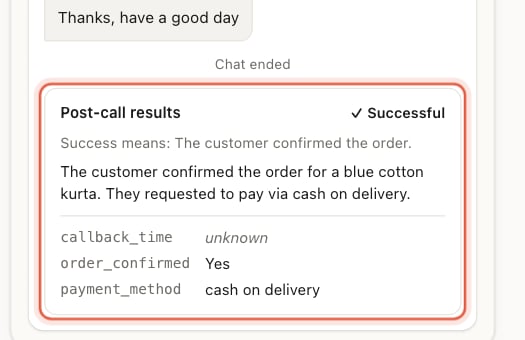
After every call, your agent fills in a small report like this one:
You can read it in the console, fetch it from the API, or have it sent to your
CRM, sheet or backend.
You need:
- A workspace on the console. Trial workspaces use the sandbox console.
- An agent. A brand new one and one that has been taking calls for months are set up the same way.
- For Part 2: your workspace API key (
sk_live_…). See the Quickstart. - For Part 3: a public HTTPS address that can receive a
POST.
Post-call results run after the call has ended, so they never slow down the
conversation. They apply to calls placed after you save. Calls from before
then keep what they had.
How it works
A few seconds after the hangup the results are on the call. A call that never connected, such as one nobody answered, has no conversation to read, so its results are skipped.Part 1: Set it up in the console
1. Open your agent
Open Agent Studio and click the agent you want results from.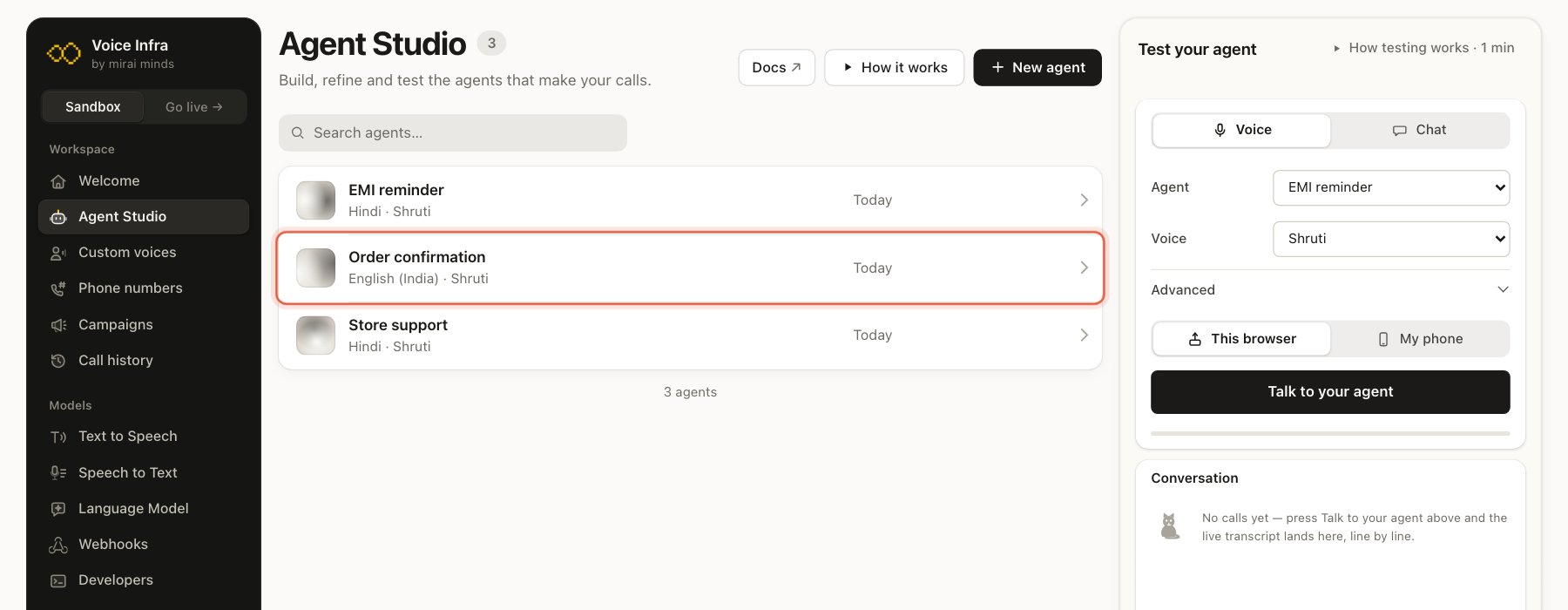
2. Open Post-call results and turn it on
In the agent’s menu on the left, click Post-call results. Then switch Enabled on.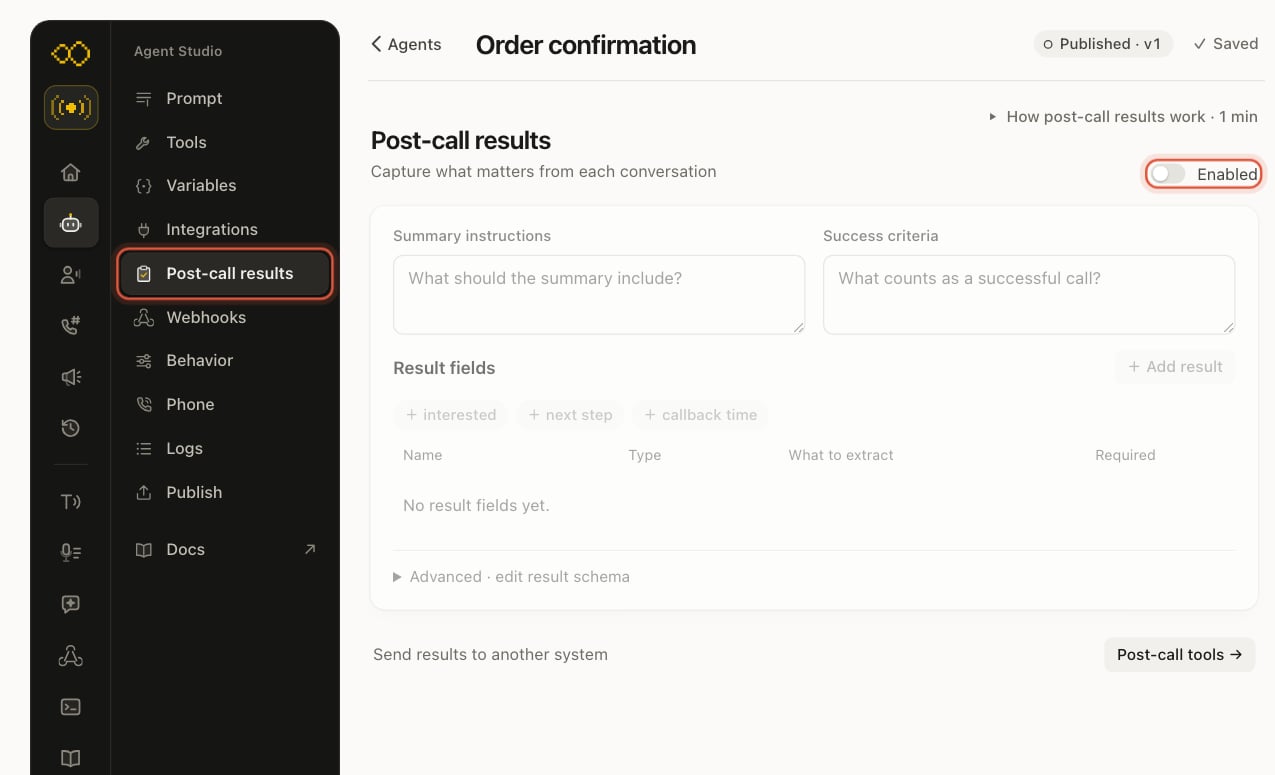
3. Say what you want back
Fill in three things. Write them the way you’d brief a new colleague.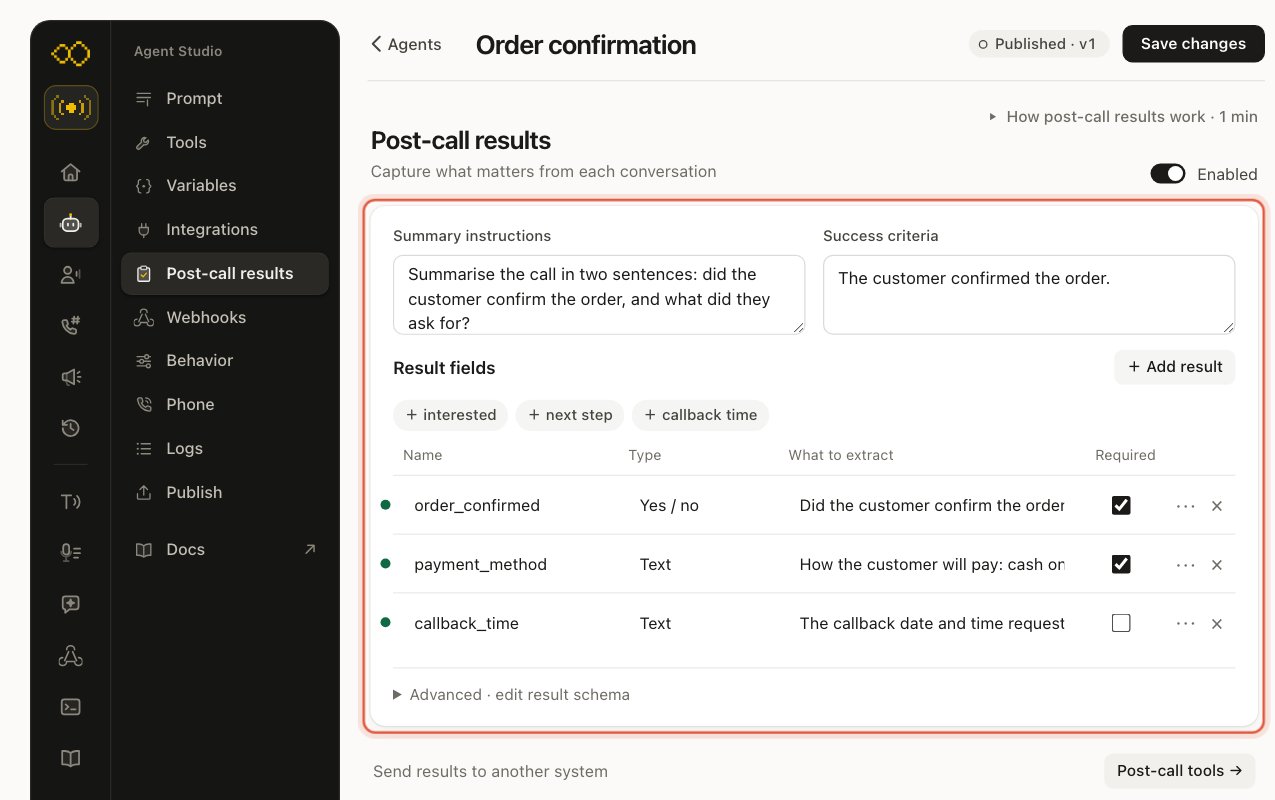
If the customer never said it, the field comes back as unknown.
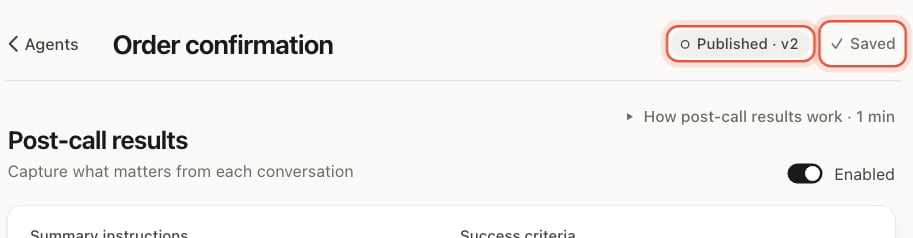
4. Save
Click Save changes at the top of the page.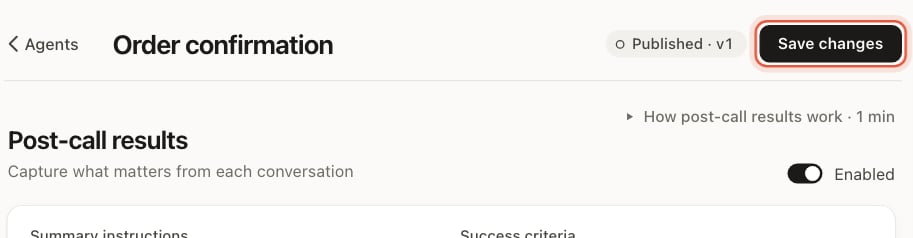
5. Test it
You don’t need a phone call to try it. In Test your agent on the right, choose Chat and press Start chat.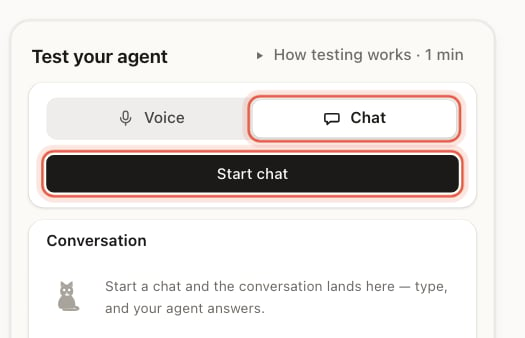
6. Find the results later
Every call keeps its results. Open Call history, click a call, and open Post-call results in the panel on the right.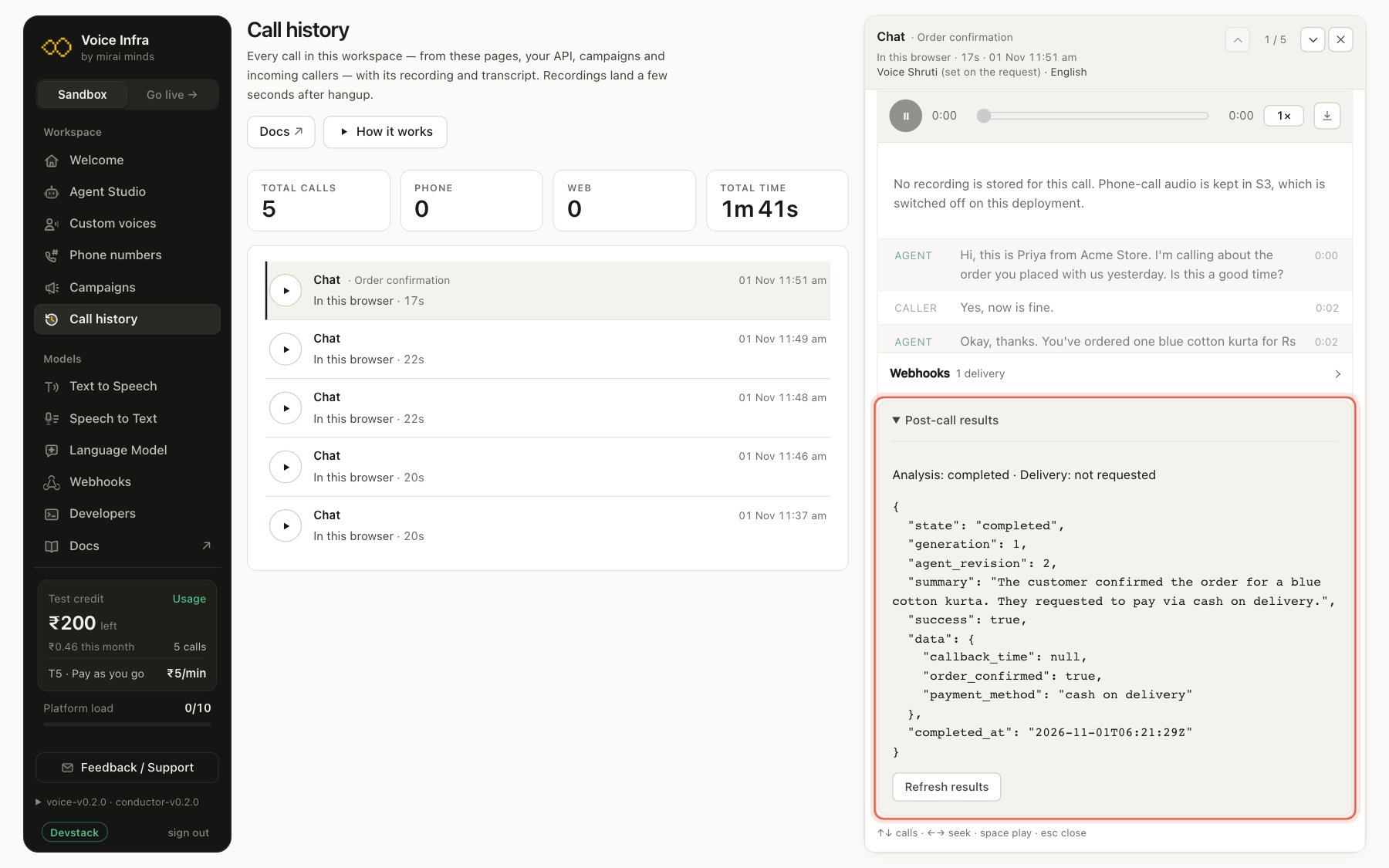
success is true for a successful call, false for one that wasn’t, and
null when it couldn’t be told. data holds your fields; null there is the
same as unknown. The Delivery line is about a webhook_url you send
with a call from the API. Webhooks you set up on the agent, as in
Part 3, are counted in the
Webhooks row just above it.
Results also show in a campaign’s Result column, so you can see how each
contact’s call went.
If the card says 'No summary or extracted fields for this agent'
If the card says 'No summary or extracted fields for this agent'
Post-call results are off for that agent, or the change wasn’t saved. Open
Post-call results, check Enabled is on, and click Save changes.
Then start a new test.
Part 2: Do the same with the API
Everything above is one setting on the agent calledanalysis. The console
writes it for you; from your backend you send it yourself.
1. Set your host and key
2. Add results to an agent you already have
Find the agent’s id (agt_…) on its page in the console or with
GET /v2/agents. Then send analysis with
PATCH /v2/agents/{id}:
revision. Only analysis changes;
the prompt, voice, tools and everything else stay as they were.
This is exactly what the console saves. Here is how its form maps to the API:
3. Or set it when you create the agent
Put the sameanalysis object in POST /v2/agents,
next to the rest of the agent:
4. Read the results of a call
When a call has finished, read its results withGET /v2/calls/{id}/analysis:
200 OK
The same
analysis object is on the call itself in
GET /v2/calls/{id}. To have each result sent to you
when it’s ready, set up a webhook as in Part 3.
If state is failed, run it again with
POST /v2/calls/{id}/analysis/retry and the body
{"if_generation": 1}, using the generation you just read.
5. Turn it off
Send"analysis": { "enabled": false }, or "analysis": null, with
PATCH /v2/agents/{id}. Calls placed after that have no post-call results.
Part 3: Send the results to your system
A webhook is a message we send to an address of yours each time something happens. Subscribe to Post-call results ready (call.analysis.completed)
and your system gets the summary, the success verdict and your fields a few
seconds after every call, without asking.
In the console
1. Open Webhooks on the agent
On the same agent, click Webhooks in the menu and switch on Send call results to your system.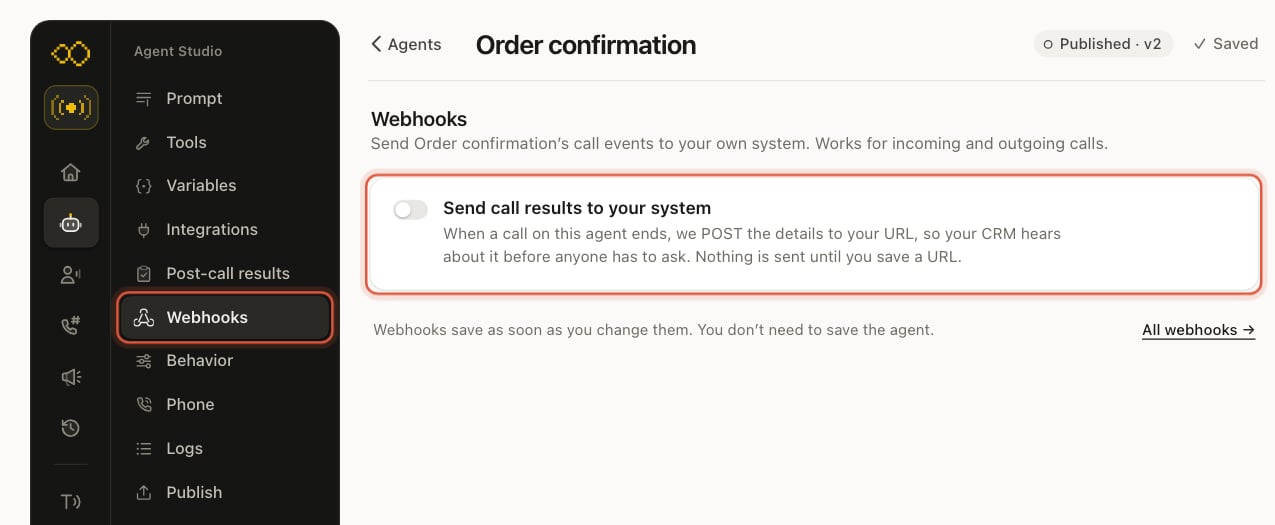
2. Paste your URL
It must be a publichttps:// address. In these
screenshots we used https://postman-echo.com/post, a free test address that
accepts any request. Use your own.
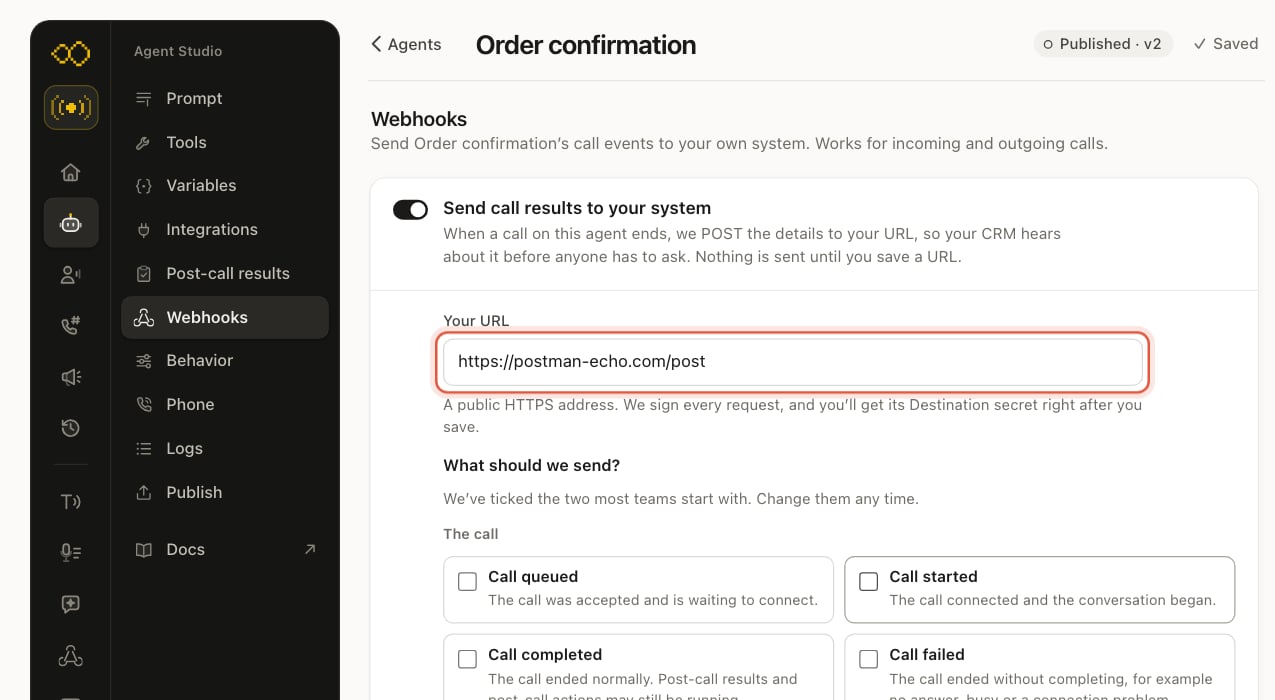
3. Choose what to send
Two events are ticked to start with. For post-call results, tick Post-call results ready under Post-call results. Untick anything you don’t need. Then click Save webhook.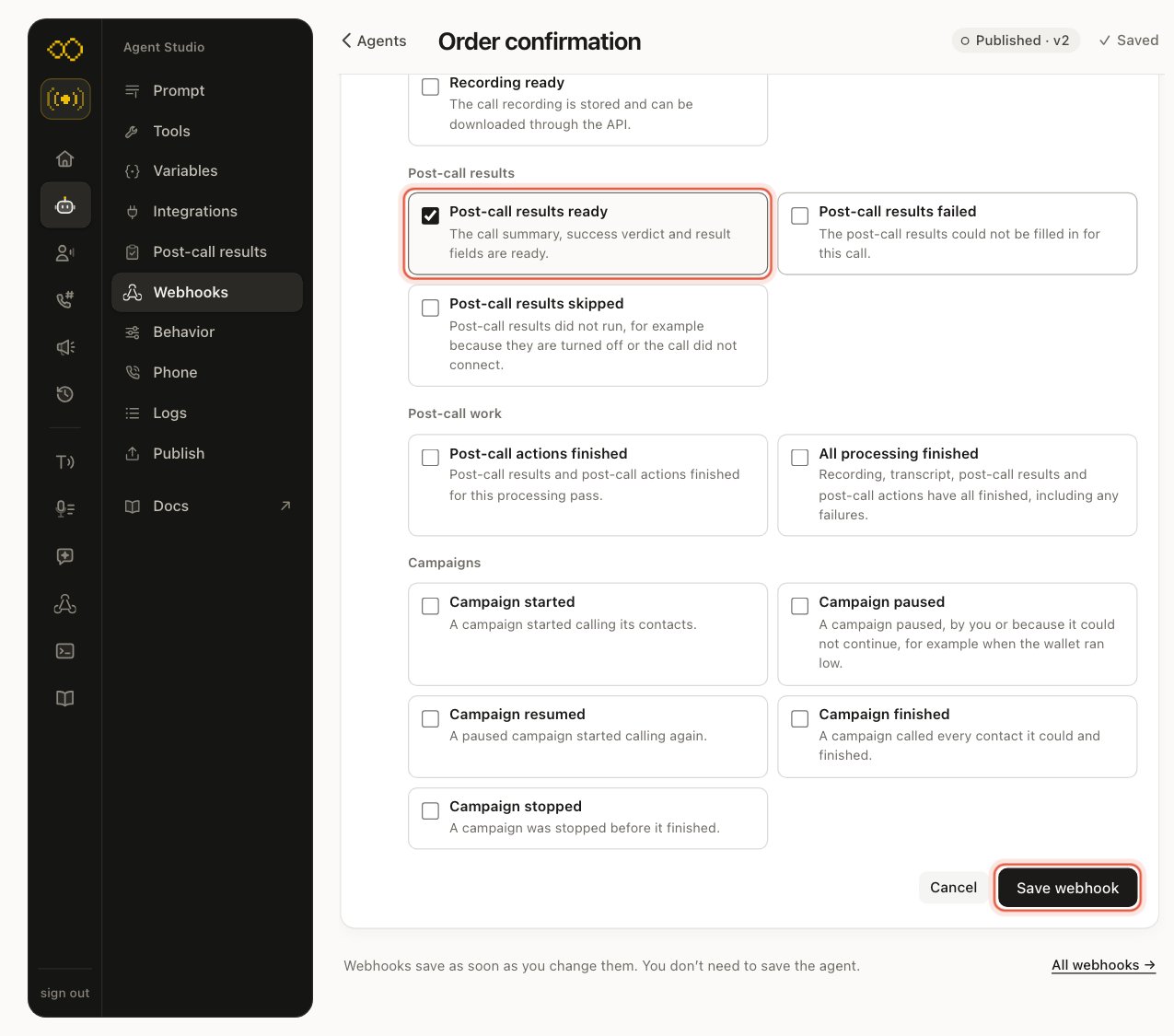
4. Copy the secret
Right after you save, we show the Destination secret once. Copy it and keep it on your server with your other keys. You use it to check that a request really came from us (see Check the signature below). Tick I have saved this secret securely and click Done.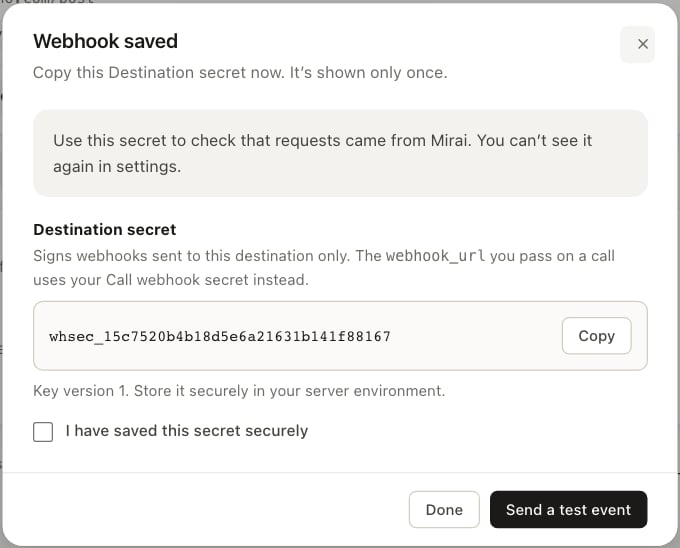
5. Make a call and watch it arrive
Run a test chat or call, as in Part 1, step 5. Back on Webhooks, the delivery shows under Recent deliveries with its status.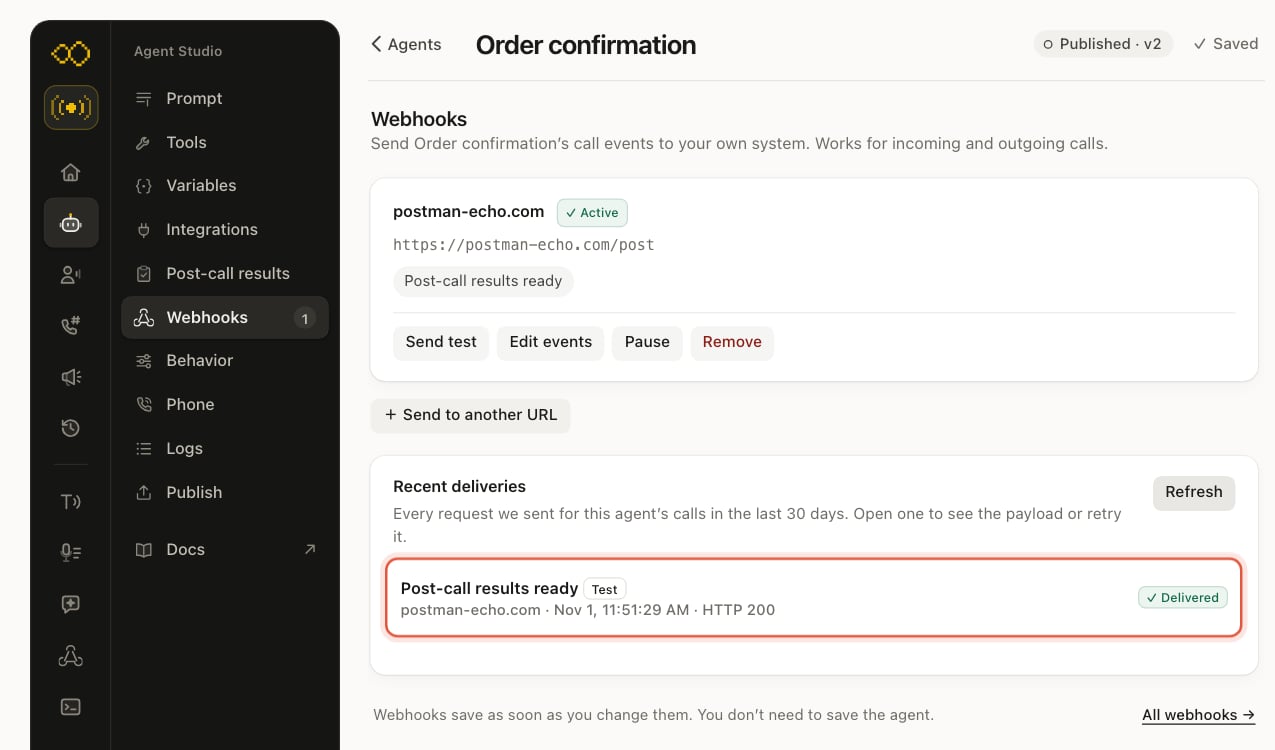
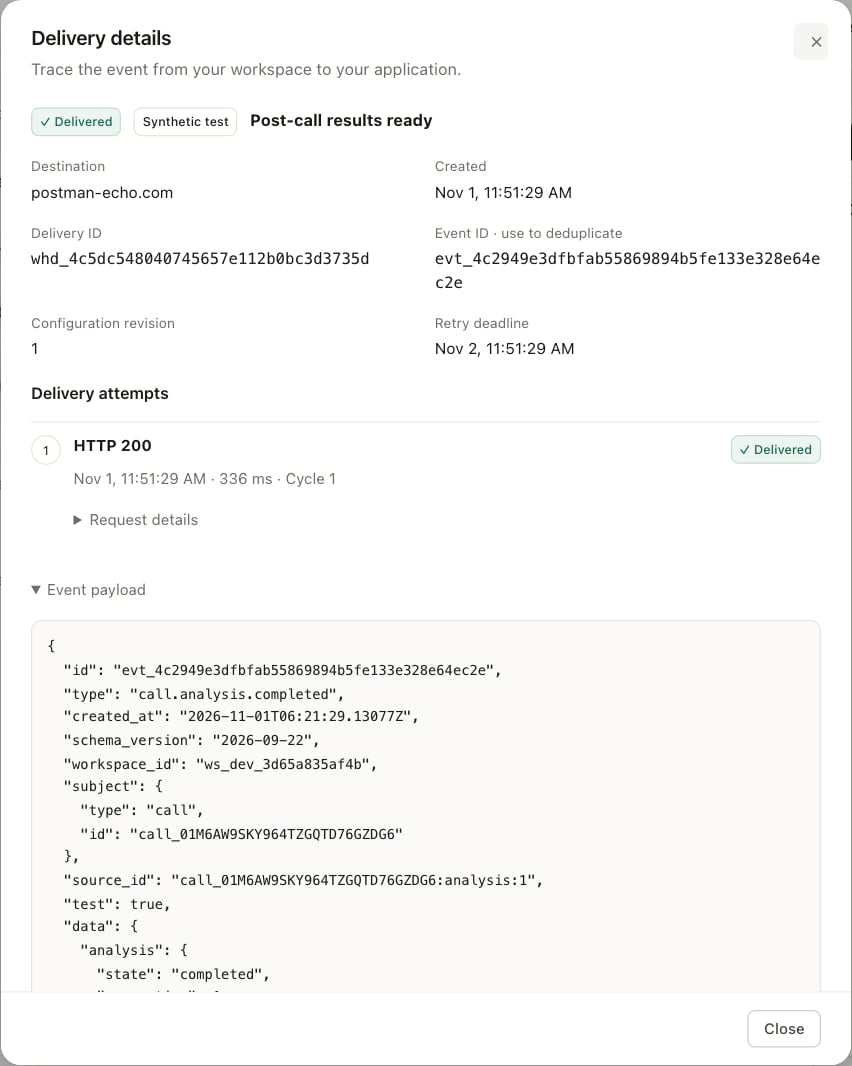
"test": true, so your system can keep them apart from real
calls.
A webhook set up on the agent saves straight away; you don’t need to click
Save changes on the agent. To send the same events for every agent in the
workspace, use Webhooks in the main menu instead.
With the API
The console steps above make two things: an endpoint (your URL) and a subscription (which events, for which agent). The API makes the same two.1. Create the endpoint
201 Created
signing_secret is shown only in this answer. Store it now.
2. Subscribe it to Post-call results ready for your agent
"scope": { "type": "workspace" }.
3. Send yourself a test
What we send
Each result arrives as a signedPOST with a JSON body like this one. The
results are in data.analysis:
data.call is the call object. If you placed the
call with metadata, such as your own order id, it’s in data.call.metadata,
so you can match the result to the right record.
Check the signature
Every request carries anX-Mirai-Signature header:
v1 is the HMAC-SHA256 of "<t>.<raw body>" with your destination secret.
Check it on the raw bytes before you parse the JSON, then answer 200
quickly. Here is a complete receiver:
2xx, we try again with the same event id, so
handle each id once. More on secrets and retries in
Webhook subscriptions.
Already placing calls with a
webhook_url on
POST /v2/calls? That URL gets the results too, in
the call.processed event, signed with your Call webhook secret. See
Webhooks.Troubleshooting
Before you go live
- The summary instructions, success criteria and fields read well on five or six test chats.
- Each field your system depends on has a clear What to extract.
- Your webhook receiver checks the signature, handles each event
idonce, and ignores events with"test": trueif you don’t want test calls in your records. - You read
data.call.metadata, or the call id, to match each result to the right customer.